Software required:
https://www.chiark.greenend.org.uk/~sgtatham/putty/latest.html
https://winscp.net/eng/download.php
WinSCP does not have the option to generate OpenSSH keys, therefore you have to use the program puttygen.exe, which is downloaded as part of Putty.
Generating the Keys
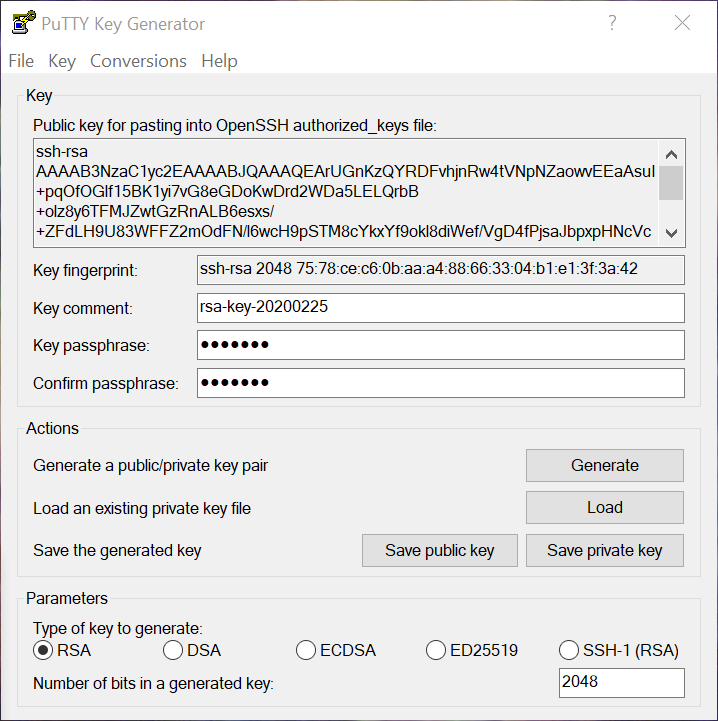
Run the program puttygen.exe, click generate. The “Key passphrase” is used to protect your ssh private key, this is not the same as any password that your use for any system, and should not be left empty.
Once the keys have been generated you need to save both the private and public key to your local laptop. The path where these are saved will be used later.
The “Public-key for pasting into OpenSSH authorized_keys file” is the text that you need to place on the remote server that you want to connect to (~/.ssh/authorized_keys)
Create WinSCP session
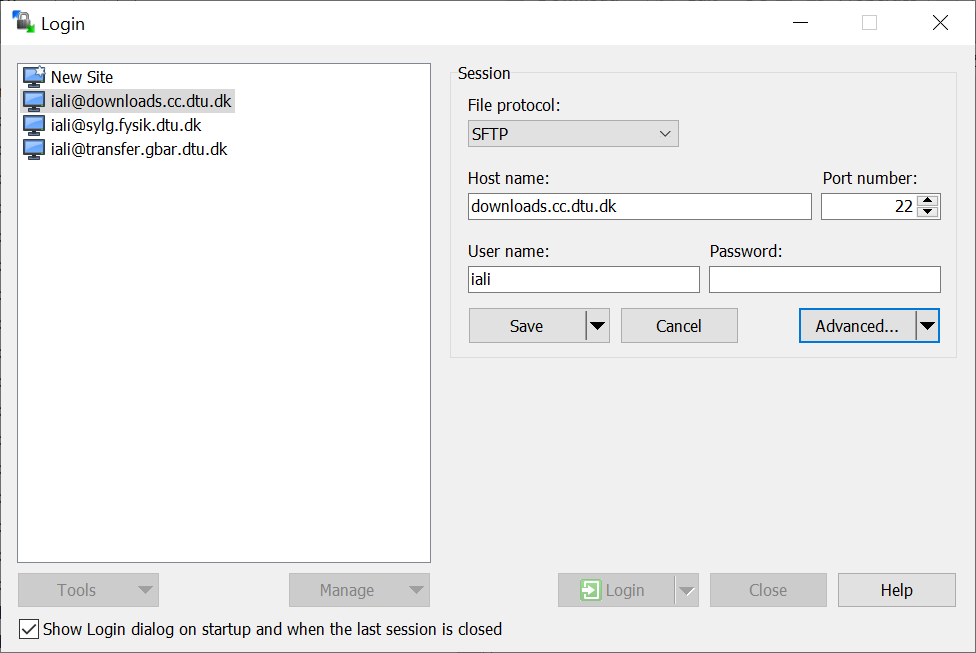
Run the WinSCP program create a new session for the server you need to connect to, click Edit then Advanced:
Here you need to enter the full path to the private key (*.ppk) saved above.
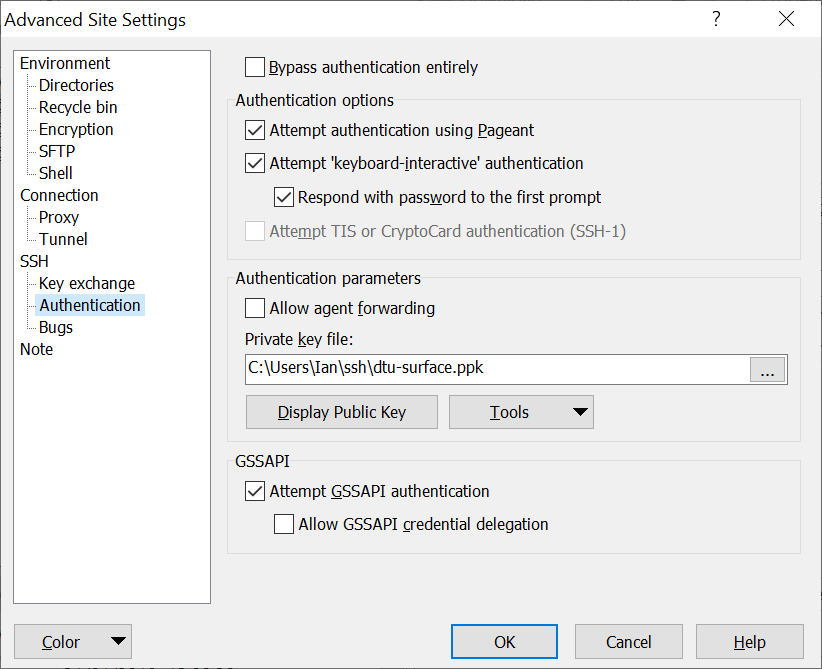
Once this, and the entry placed in the servers authorized_keys is done, you should be able to open a WinSCP connection to the server.